Copy Group to Create New Groups
Stay is enhanced to allow users to copy an existing group and create a new group instantly by choosing the required information from the original group.
Permission
The following new permission has been introduced to allow users to copy and create a new group:
-
Stay_CopyGroup
This permission is provided to users with access to the following roles by default:
-
System Administrator
-
Stay Hotel Manager
-
Department Manager
-
Stay Hotel Supervisor
Stay Hotel Supervisor Stay Hotel Supervisor Copying a Group
When the newly added flag, Allow Copy Groups, is enabled for the property, users with the new permission can copy a group irrespective of its status by clicking on Copy Group in the Group Booking tab of the Group screen. When clicked, the Copy Group screen appears that allows users to select from the following details displayed:
|
Field |
Description |
|---|---|
|
Group Name |
|
|
Group Code |
|
|
Status |
This is a mandatory single-select drop-down list that displays the status of the original group pre-selected by default. If the status of the original group is Cancelled or Turndown, users can select the applicable status for the new group from the following options:
|
|
Group Stay Dates |
Users can select the arrival and departure dates for the new group.
|
|
Room Blocks/Contract/Rate |
If the total number of nights is the same as that of the original group, users can copy the Room Blocks, Contracts, and Rates for the rooms.
|
|
Group Shoulder Dates |
Users can select the arrival and departure shoulder dates for the new group.
|
|
Room Blocks/Rate |
|
|
Room Type Blocks |
This section allows users to copy the room types available in the original group.
|
|
Other Group Details |
The following fields will be displayed in this section if data for the fields is available in the original group. |
|
Post Room Revenue As |
The transaction item selected in the original group is displayed.
|
|
Cancellation Policy |
The cancellation policy selected in the original group will be displayed below this field.
|
|
Deposit Policy |
The deposit policy selected in the original group will be displayed below this field.
|
|
Preferred Language |
The preferred language selected in the original group will be displayed below this field.
|
|
Payment Type |
The payment type selected in the original group will be displayed below this field.
|
|
Booking Type |
The booking type selected in the original group will be displayed below this field.
|
|
Suppress Rate |
|
|
Wholesaler |
|
|
Tax Exempt |
|
|
Marketing Details |
Marketing details of the group, such as Guest Type, Source of Business, and Market Segments, are displayed in this section.
|
|
Guest Type |
The Guest Type selected for the original group is displayed.
|
|
Source of Business |
The Source of Business selected for the original group is displayed.
|
|
Market Segment |
The Market Segment selected for the original group is displayed.
|
|
Group Contacts |
If contacts were added to the original group, this section is displayed with the option to choose the contacts to copy.
In this section, all the contacts are displayed with a checkbox for each to copy to the new group.
|
|
Group Events |
|
|
Group Comments |
If comments were added to the original group, this section displays options to choose the comments to copy.
|
|
Routing Rules |
|
|
Group Reservation Rules |
|
|
Group Account Rules |
|
|
Reservation Preset |
|
|
Payment Methods |
|
|
Housing Restricted |
The Housing Restricted checkbox is checked and displayed in the Copy Group screen only if the Housing Restricted feature setting is enabled, and the Housing Restricted checkbox is checked for the original group.
|
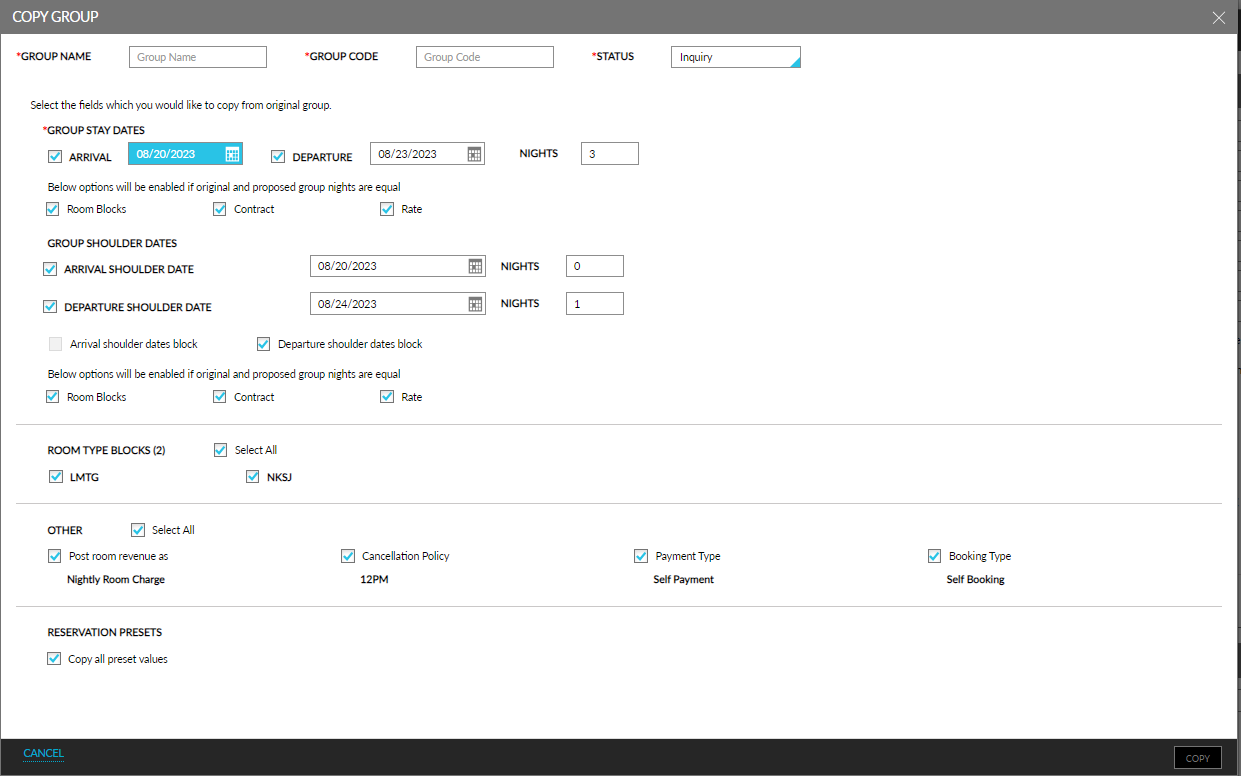
Once all the required fields are selected, users can click the Copy button to copy the selected details to the new group. When overbooking is performed, the credentials of the users are validated to check if the user has the required permission. An entry for the group created through copy is created in the History section of the new group in the following format: Group copied from <Original Group Code>.
To support this enhancement, the following changes have been made:
-
A new option, Copy Group, has been added to the Group Booking tab of the Group screen. When clicked, the Copy Group screen appears that allows users to select the required details to be copied.
-
A new flag, Allow Copy Groups, has been added to the Groups tab on the Property Setup screen. When enabled, the Copy Group option will be enabled for selection to copy a group.